Adding a Tripleseat Form to Drupal
This tutorial will explain how to add a Tripleseat form to Drupal. This is useful for allowing users to submit event requests through the website.
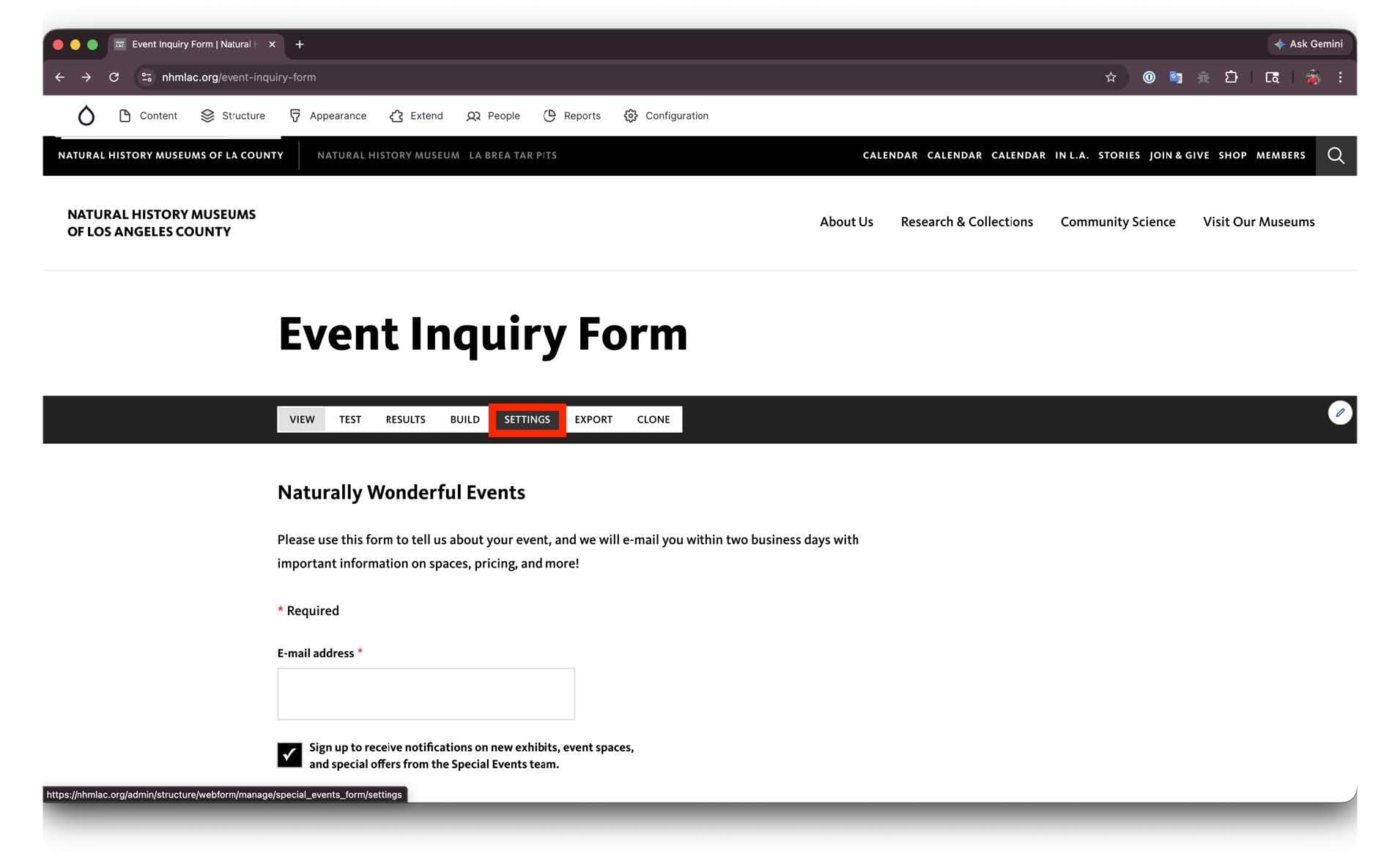
Go to webform settings
When logged in, navigate to the webform to add the Tripleseat form to. Click the "Settings" button at the top of the page.
Alternatively, navigate to admin/structure/webforms and click the "Settings" button next to the webform you want to add the Tripleseat form to.
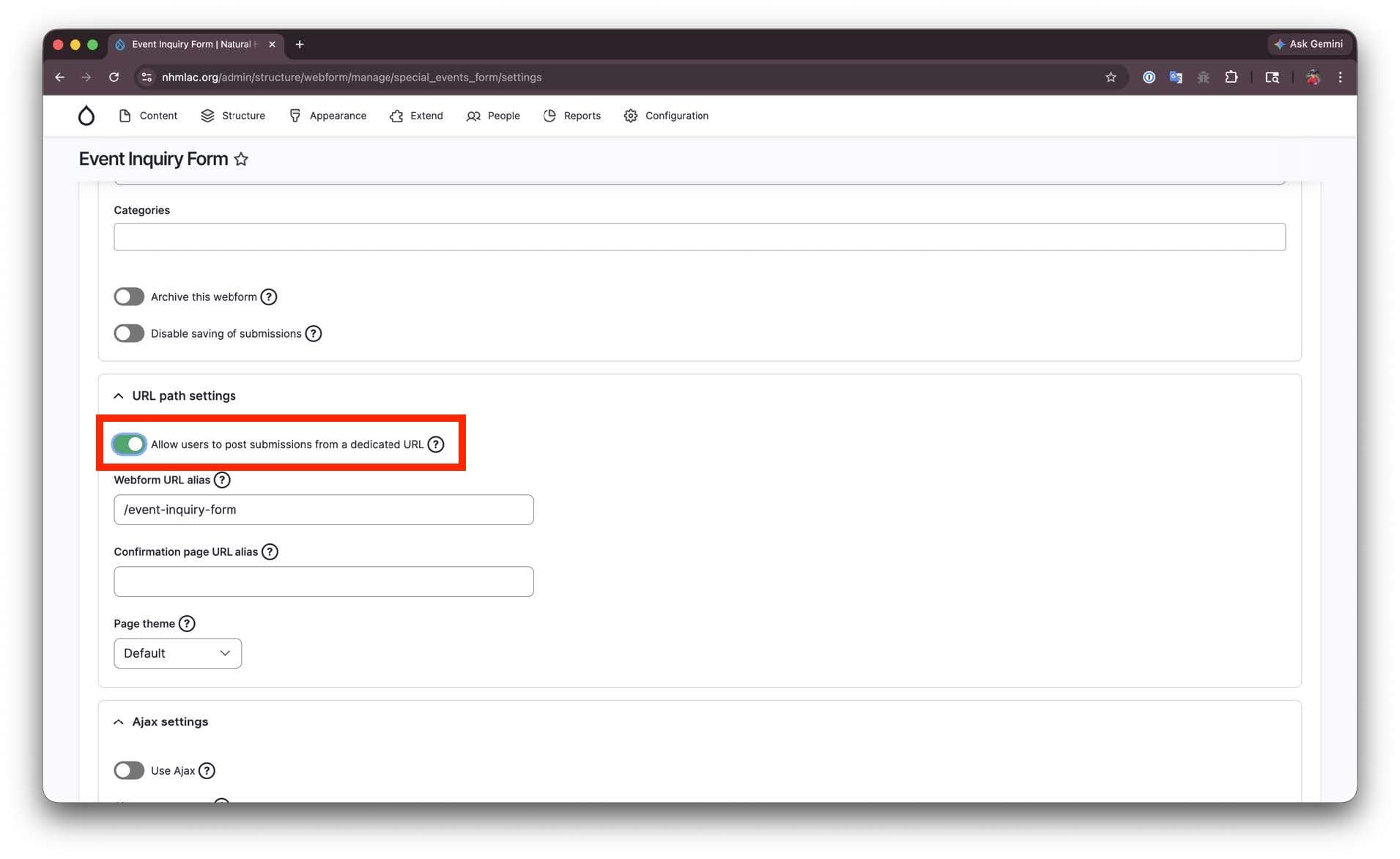
Turn off Allow users to post submissions from a dedicated URL.
Find the toggle under "URL path settings" and turn it off. This will allow the form to be embedded on another page.
Save the settings
Click the "Save" button at the bottom of the page to save the settings.
Create a new basic page
Create a new basic page (Content > Add content > Basic page) to add the Tripleseat form to.
Embed the form
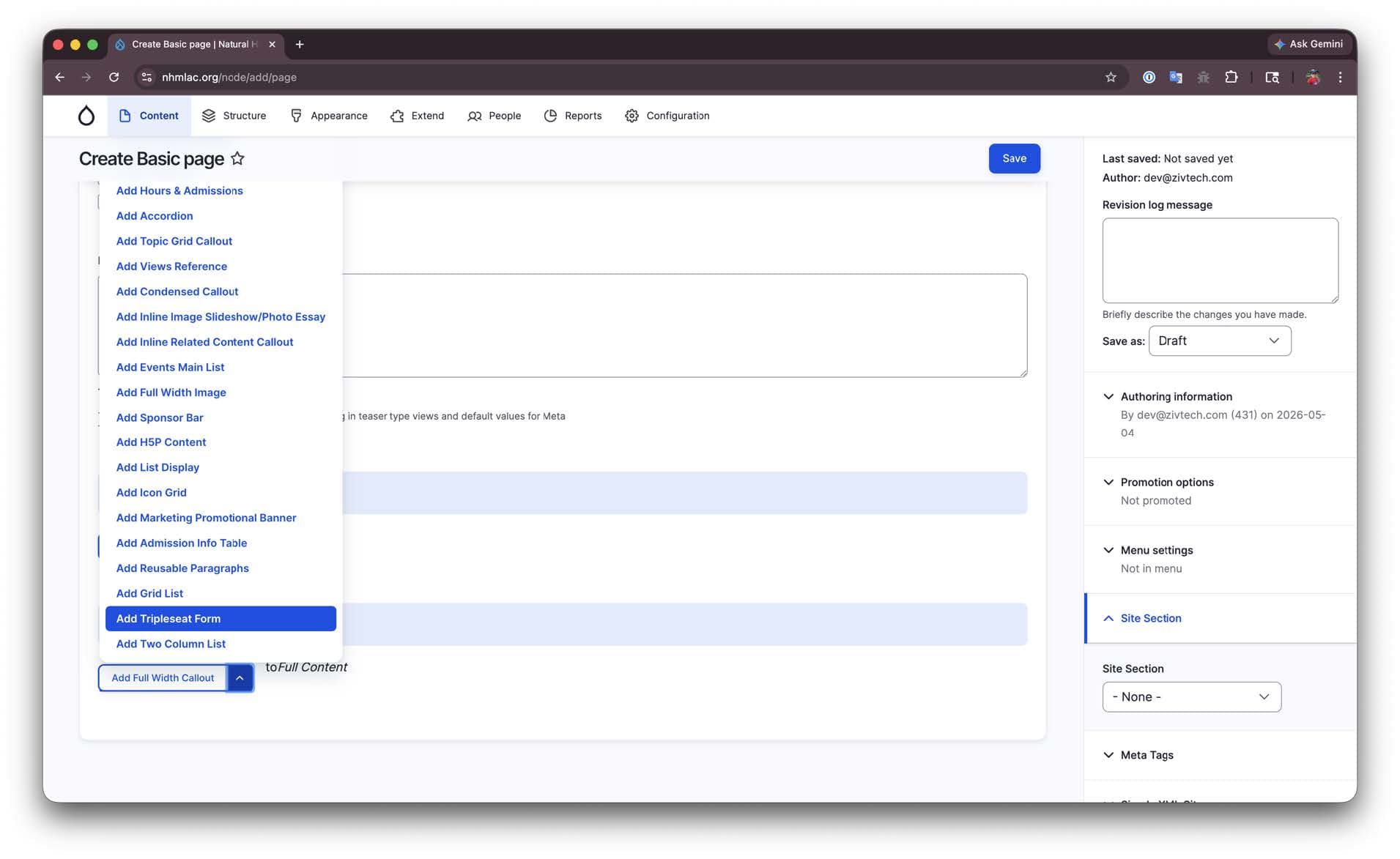
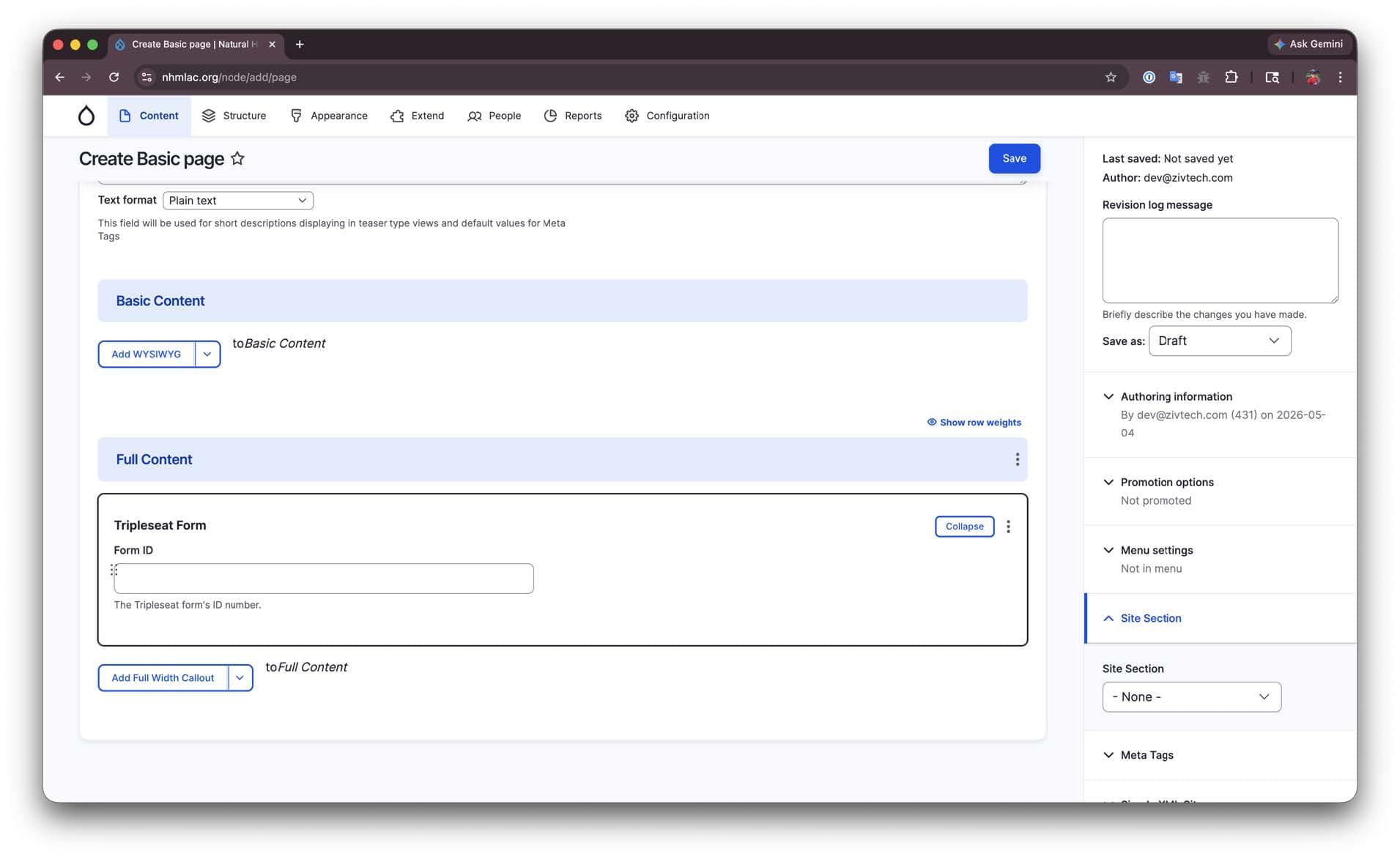
Add a Tripleseat Form paragraph to the full content field.
Add your form ID
In the Tripleseat Form paragraph settings, add your form ID. This can be found in the URL of your Tripleseat form.
For example, if your form URL is https://naturalhistorymuseumoflosangelescounty.tripleseat.com/forms/12345, then your form ID is 12345.
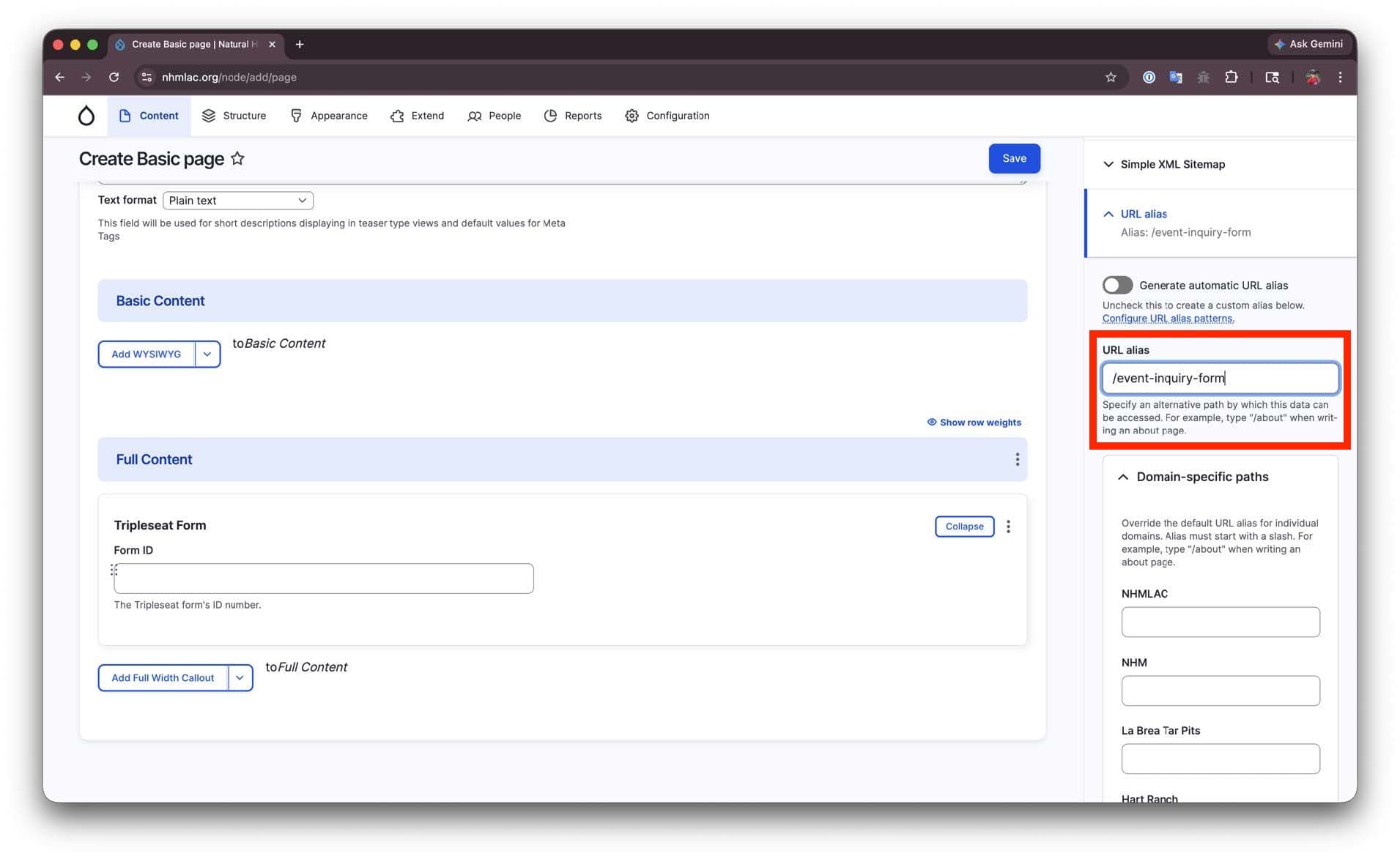
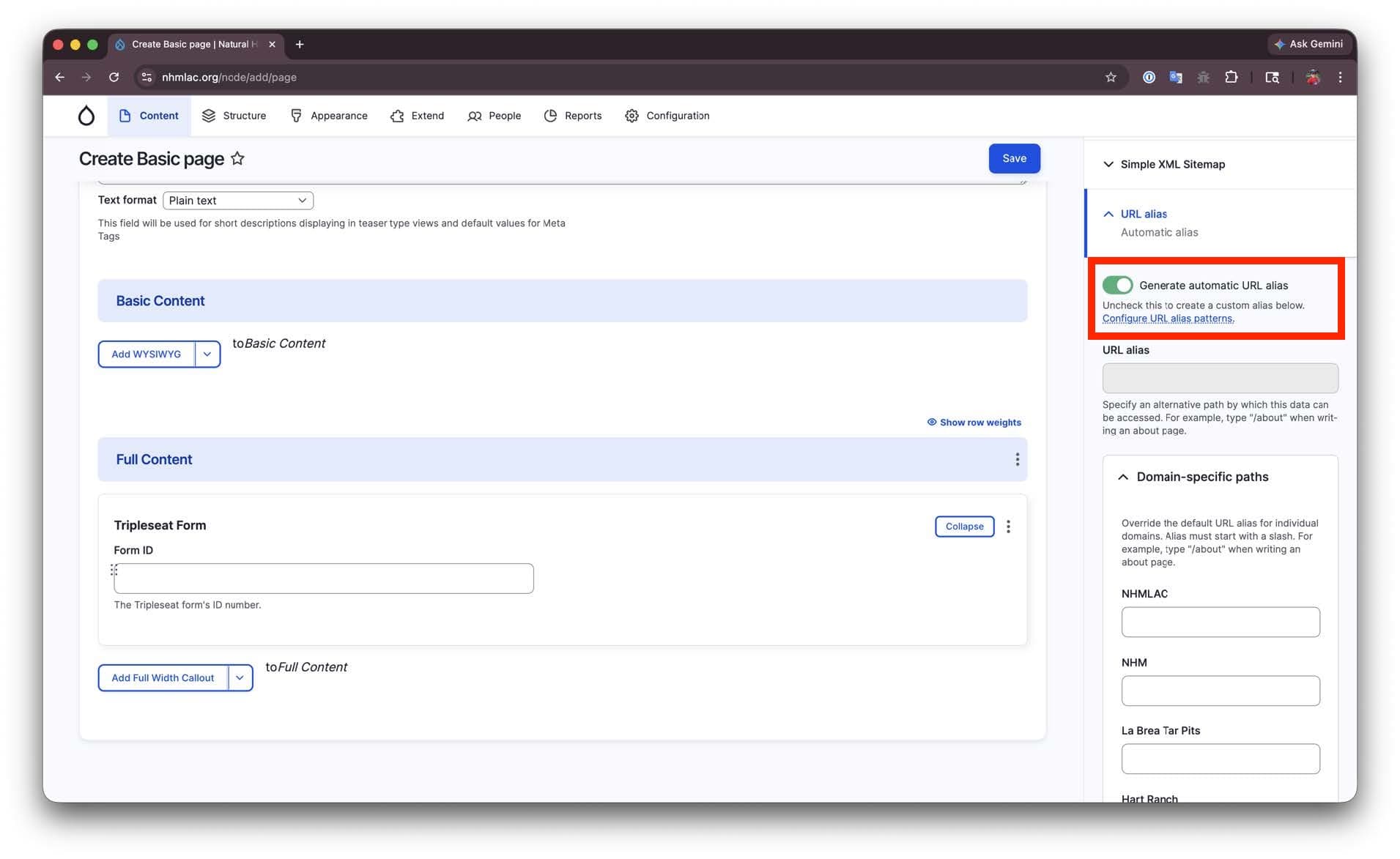
Turn off Generate automatic URL alias
In the URL alias settings, turn off the "Generate automatic URL alias" toggle. This will allow you to set a custom URL for the page.
Add the URL alias
In the URL alias field, add the desired URL for the page. For example, you could use event-request to make the page accessible at https://www.nhm.org/event-request.